How to Play Arknights: Endfield on Linux

Arknights: Endfield is a 3D real-time strategy RPG from Hypergryph, published by Gryphline. You play as the Endministrator of Endfield Industries, explore the planet Talos-II, build and defend your factories, and fight in real-time parties. It is free to play, cross-platform, and — since October 2026 — available natively on Steam.
On Linux it runs well through Proton. The recommended path is the Steam version with Dawn Wine Proton (DW-Proton). If you would rather not use Steam, the older method — the official Windows client through Heroic — still works.
What you need
Section titled “What you need”| Item | Notes |
|---|---|
| Arknights: Endfield | Free from Steam (recommended) or the official site |
| ProtonPlus | Flathub; used to download Dawn Wine Proton |
| Heroic Games Launcher | Only for the manual (non-Steam) method |
Method 1: Steam (recommended)
Section titled “Method 1: Steam (recommended)”- Install ProtonPlus from Flathub and open it once.
- Select Steam, choose Dawn Wine Proton (DW-Proton) and download the latest version.
- Close Steam completely (tray icon → Exit Steam, or
killall steam), then start it again so it sees the new build. - Install Arknights: Endfield from Steam.
- Open the game’s Properties → Compatibility, tick Force the use of a specific Steam Play compatibility tool and pick the latest Dawn Wine Proton.
- Launch, log in and let the game download its resources.
Dawn Wine Proton is the build most likely to work. If it fails, other Proton versions usually will not help — the cause is more often game files, permissions or drivers.
Method 2: Heroic + official client (manual)
Section titled “Method 2: Heroic + official client (manual)”- Open Heroic once so it initialises, then open ProtonPlus.
- Select Heroic (or Steam), choose DW-Proton and download the latest version. Restart the app if it does not show as installed.
- In Heroic press Add Game and type the game name.
- Press Show Wine settings and set Wine version to the latest DW-Proton.
- Press Run installer first, select the
.exeyou downloaded and install in English to the default location (C:\Program Files). - Close the installer, then press the folder icon next to Select executable and choose the launcher in
drive_c/Program Files/(Gryphline). - Press Finish, then play the launcher from Heroic and download the game.
- Log in. The game may ask you to restart; open it again from the launcher.
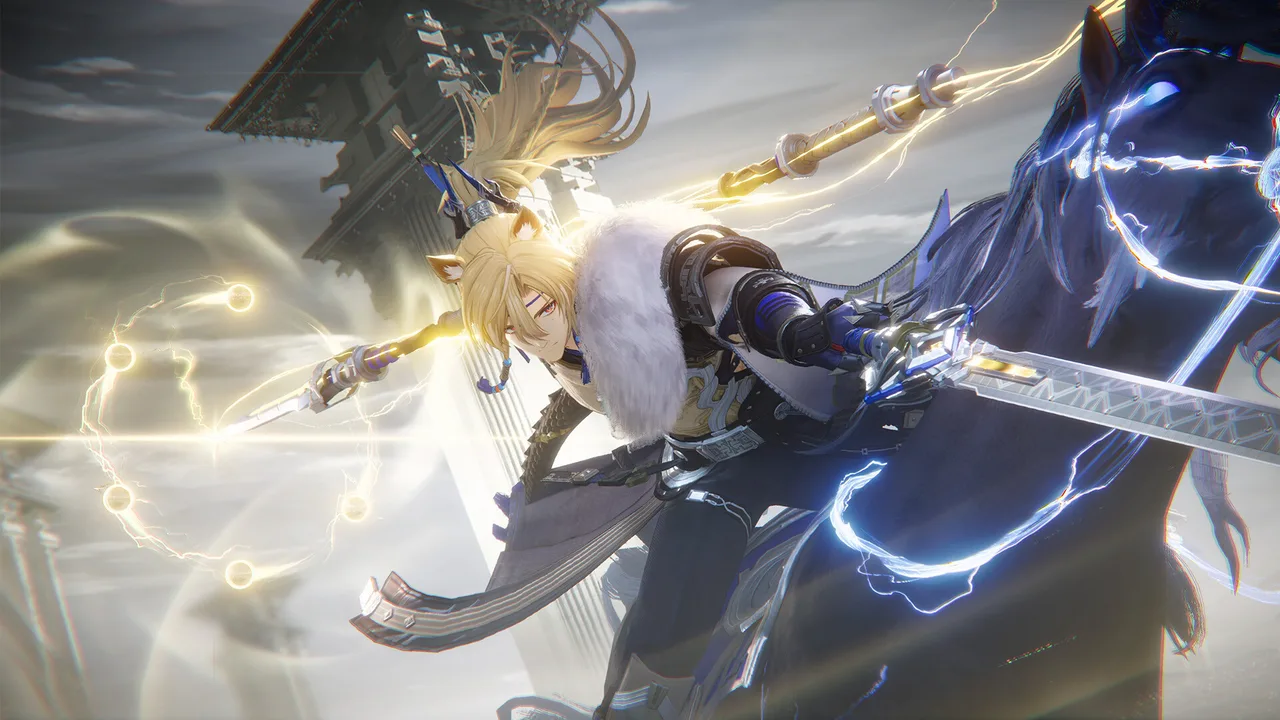
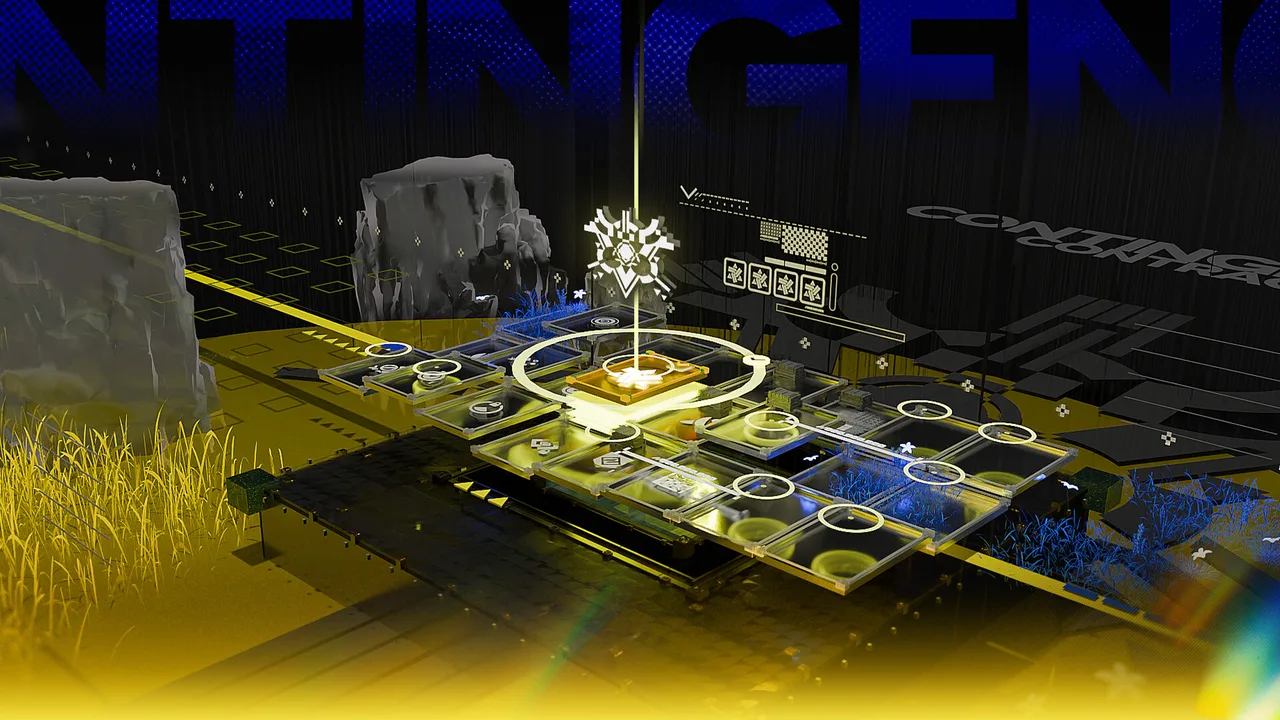
Screenshots
Section titled “Screenshots”


Troubleshooting
Section titled “Troubleshooting”- It does not launch on Steam: make sure the game is actually using Dawn Wine Proton (Properties → Compatibility) and that Steam was restarted after downloading the runner.
- Black screen or crash on first launch: update your GPU drivers and Vulkan packages, then try a fresh prefix (delete the game’s
compatdatafolder and relaunch). - Launcher shows a blank window (Heroic method): re-check that the executable points at the Gryphline launcher inside
drive_c/Program Files/, not the installer.
Gameplay
Section titled “Gameplay”Frequently asked questions
Section titled “Frequently asked questions”Do I need Windows to play this on Linux?
No. The game runs through Proton or Wine, a compatibility layer for Windows games.
Is my progress shared between PC, mobile and Steam?
Arknights: Endfield uses a Gryphline account, so your progress is tied to your account, not the platform or your operating system.
The game does not start. What should I try first?
Update your GPU drivers and Vulkan packages, make sure Dawn Wine Proton is selected, and create a fresh prefix if the old one may be corrupted.
Is it free?
Yes. Arknights: Endfield is free to play on Steam, PC, mobile and PlayStation.
Game key art and screenshots are © their respective owners and are shown here for identification only.