Chaos Zero Nightmare on Linux (Stove + WebView2)
Chaos Zero Nightmare runs on Linux through the Stove client, which needs Microsoft Edge WebView2 installed in the same Wine prefix. This page is the hub: pick your launcher below for the step-by-step guide, then use the shared prerequisites and fixes further down.
Choose your launcher
Section titled “Choose your launcher”The Stove, WebView2 and Wayland steps are shared by both launchers.
Video guides
Section titled “Video guides”What you need
Section titled “What you need”| Item | Description | Download link |
|---|---|---|
| Stove Client | Official client used to play the game on Linux | Download here |
| Microsoft Edge WebView2 | Runtime required by Stove (provides the web-view component) | Get it from Microsoft |
| Faugus Launcher or Heroic Games Launcher | Front-end for installing and launching games | Faugus on Flathub / Heroic on Flathub |
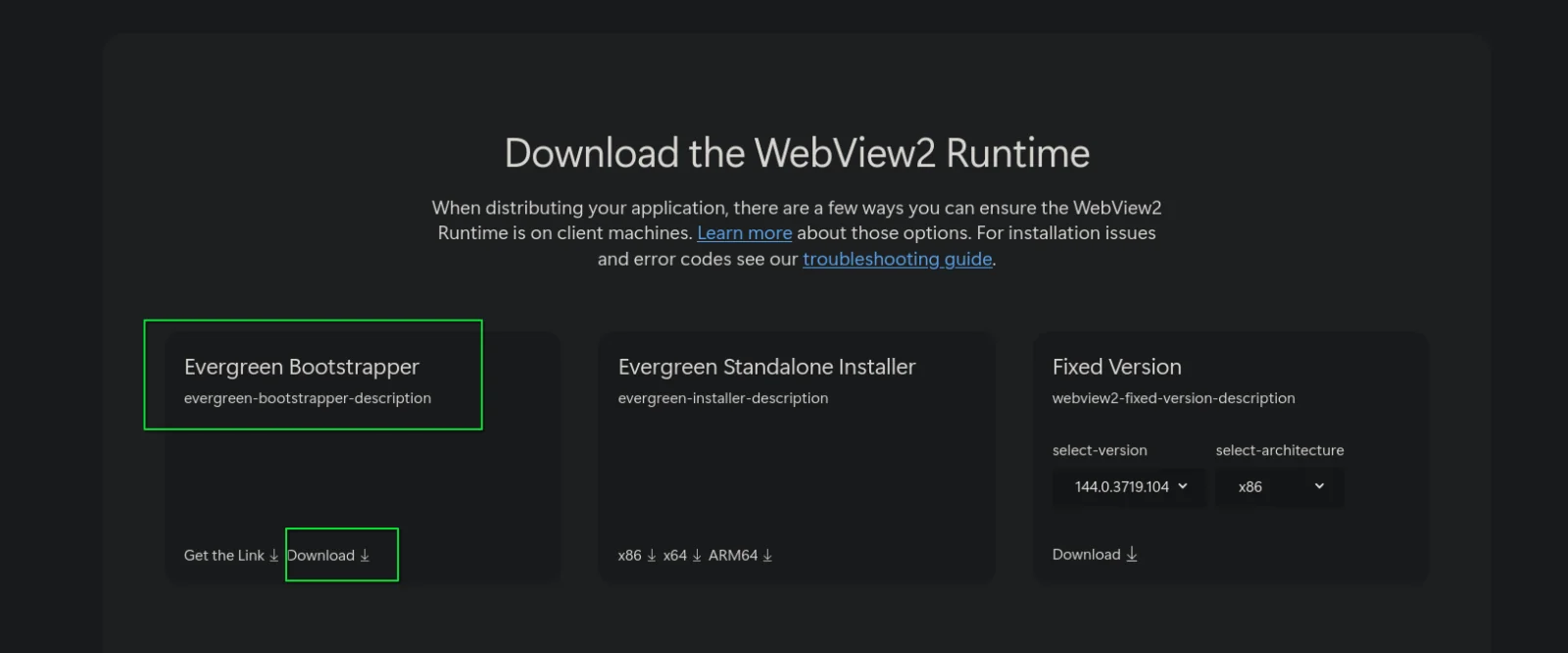
Important: download the Evergreen Bootstrapper for Microsoft Edge WebView2 and save it to your
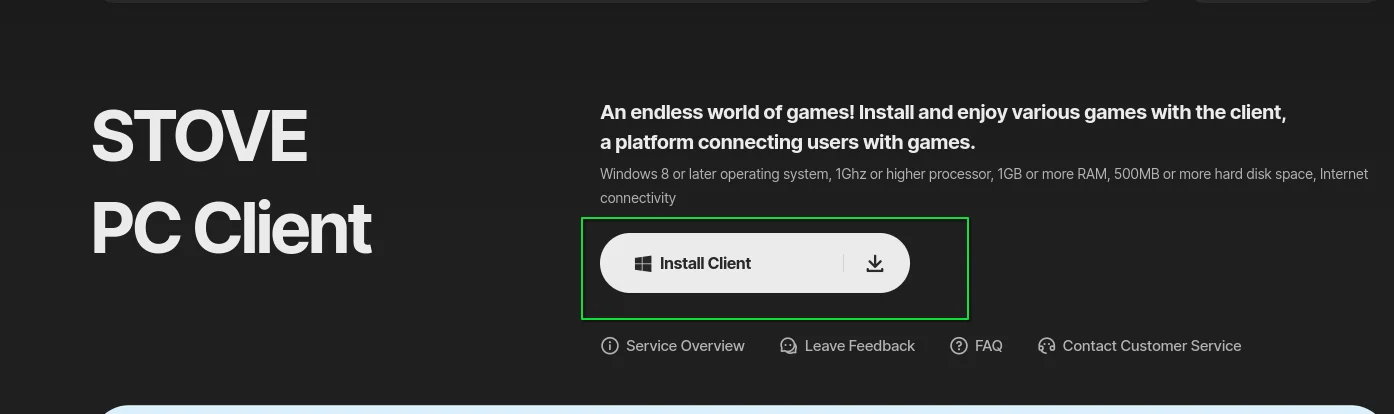
Downloadsfolder. Then download the Stove client using the link above or a search engine.
Fix: install freeze (Wayland or X11)
Section titled “Fix: install freeze (Wayland or X11)”Wayland: enable Wine Wayland
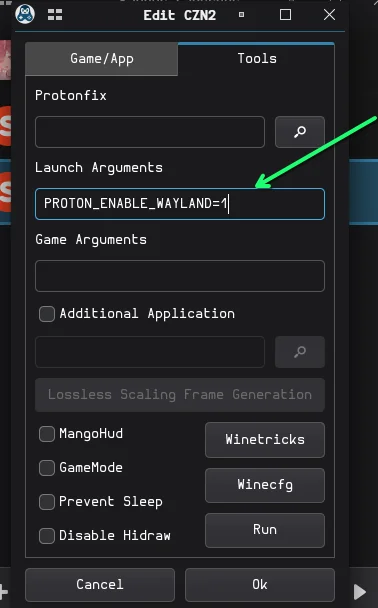
Section titled “Wayland: enable Wine Wayland”Try this first unless you are on X11 or Linux Mint. In Faugus, add this launch argument. In Heroic, switch on Wine Wayland in the game’s settings.
PROTON_ENABLE_WAYLAND=1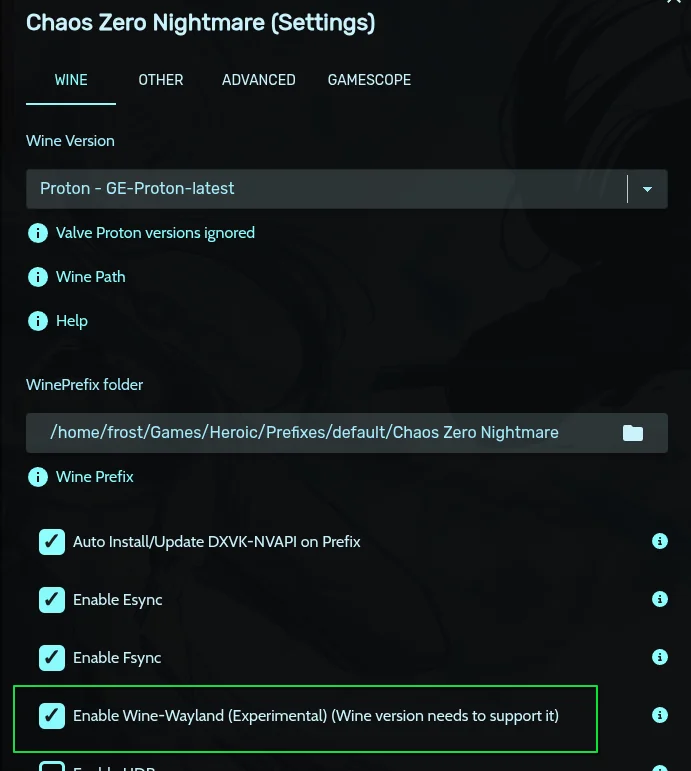
X11 and Linux Mint: virtual desktop
Section titled “X11 and Linux Mint: virtual desktop”For X11 sessions (i3, XFCE, Qtile, dwm, Linux Mint and so on), use this instead of Wayland:
- Open Settings > WINECFG (Faugus: Tools > WINECFG).
- Click Install to open the configuration window.
- Go to the Graphics tab.
- Check Emulate virtual desktop and adjust the size if you like.
- Click Apply, then OK.
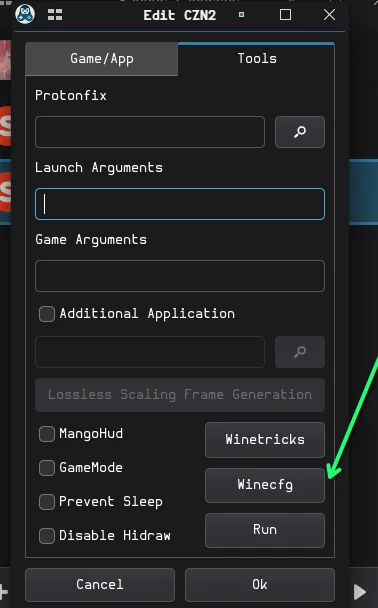
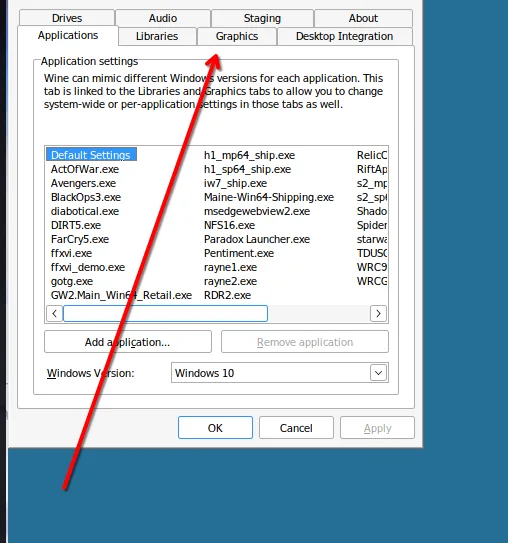
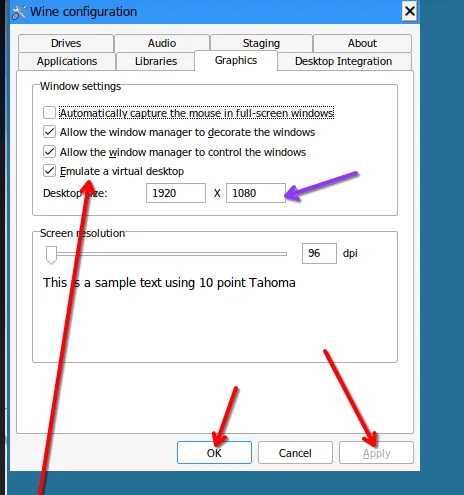
To revert, uncheck Emulate virtual desktop or disable Wine Wayland again.
Lutris
Section titled “Lutris”Lutris is available on Flathub.
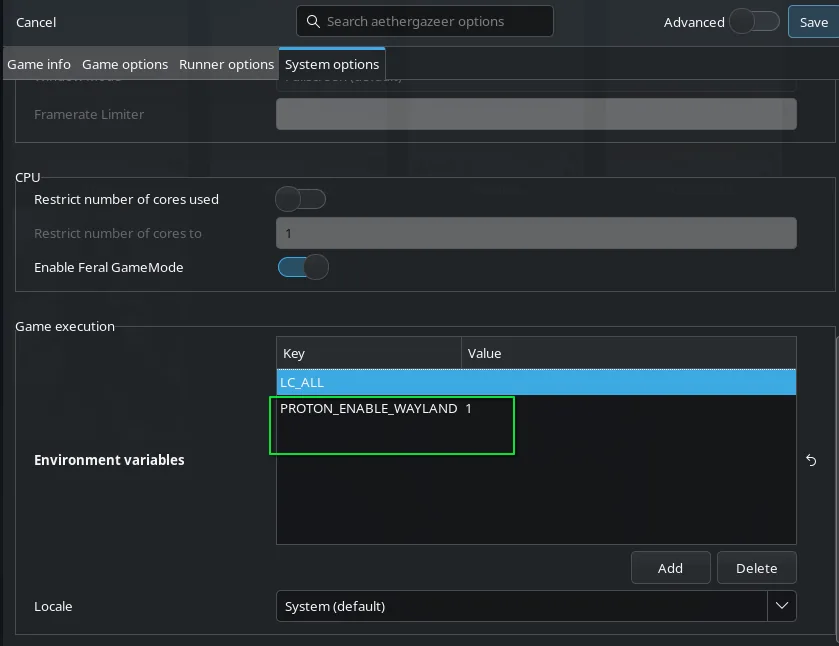
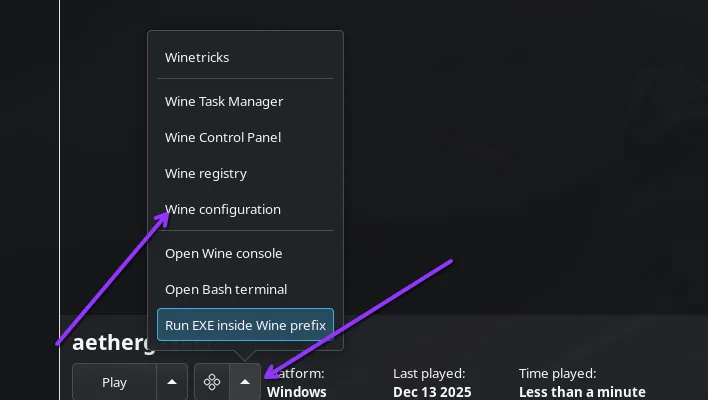
- Open the Lutris settings for the game and add
PROTON_ENABLE_WAYLAND=1. - For a virtual desktop, select the game, press the arrow to reveal the menu, choose Wine configuration and enable Emulate virtual desktop.
Stove not launching (crashpad_handler.exe)
Section titled “Stove not launching (crashpad_handler.exe)”If Stove no longer launches after following the normal guide, it is probably caused by crashpad_handler.exe.
-
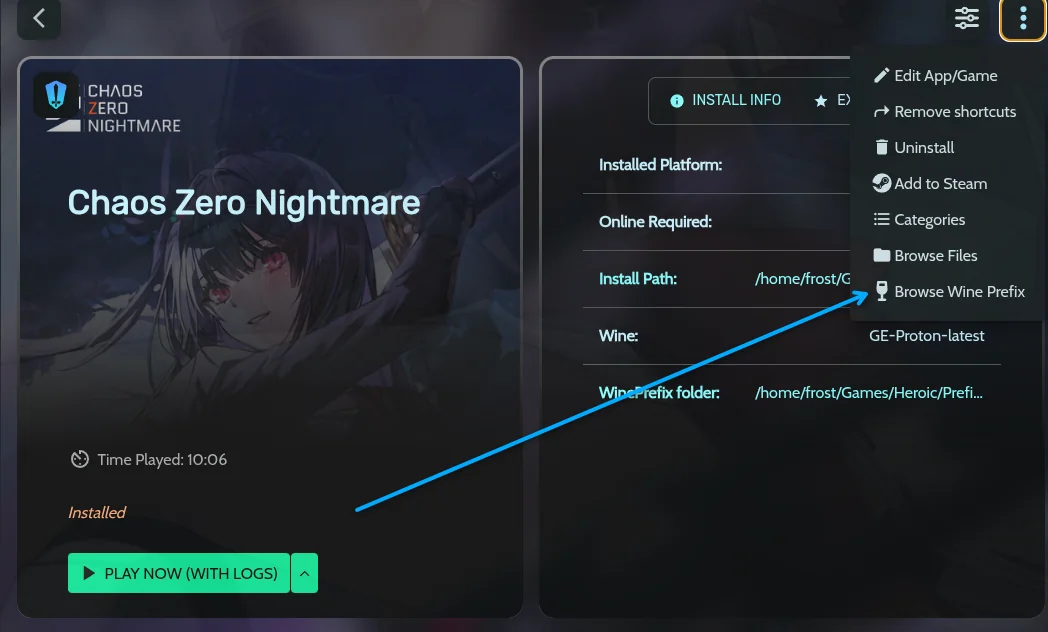
Open your Wine prefix. In Heroic go to Settings > Game Options > Wine Prefix and click Browse Wine Prefix.
-
Navigate to this path inside the prefix:
drive_c/ProgramData/Smilegate/LauncherService/App/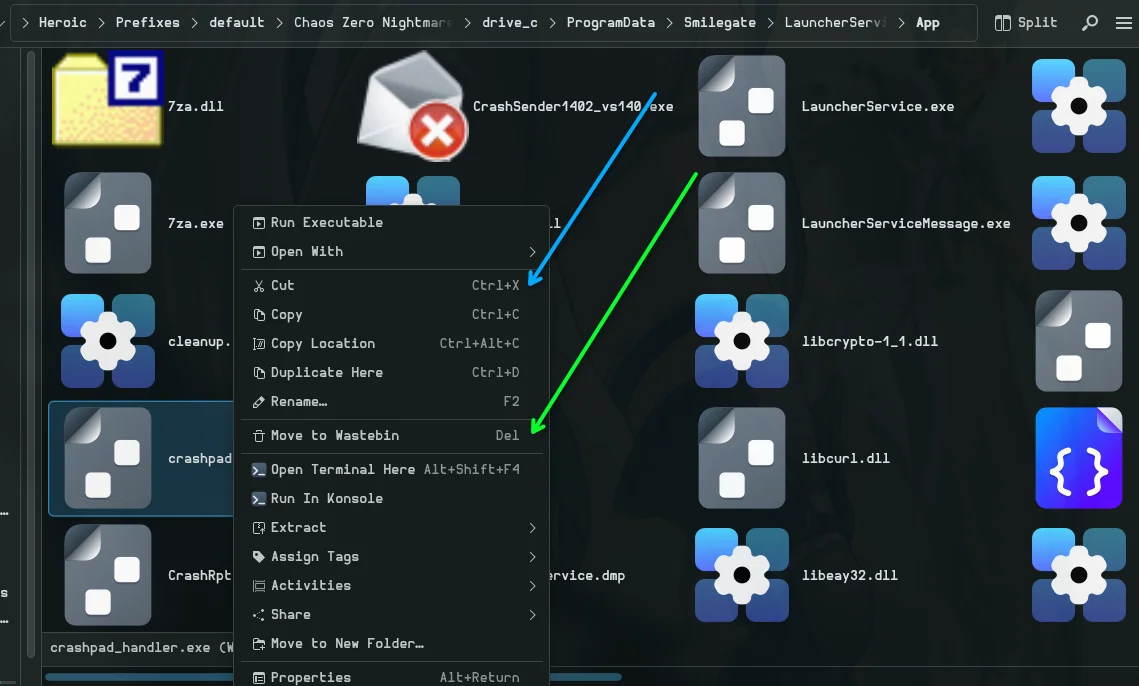
-
Find
crashpad_handler.exeand either delete it or move it to a different folder. -
Launch Stove again. It should start normally.
Gameplay
Section titled “Gameplay”Frequently asked questions
Section titled “Frequently asked questions”Can you play Chaos Zero Nightmare on Linux? Yes. Install Stove and Microsoft Edge WebView2 in a Wine prefix with Faugus Launcher or Heroic Games Launcher.
Which launcher should I use? Faugus Launcher, because Heroic has had issues after the Season 2 update. Heroic still works for many people.
Why does Stove not launch?
Usually crashpad_handler.exe. Deleting it or moving it out of drive_c/ProgramData/Smilegate/LauncherService/App/ fixes it.
How do I fix the install freeze? Enable Wine Wayland, or on X11 or Linux Mint enable Emulate virtual desktop in WINECFG.
Do I need WebView2? Yes. Stove requires the Microsoft Edge WebView2 runtime.
Game key art and screenshots are © their respective owners and are shown here for identification only.