How to Play NIKKE: Goddess of Victory on Linux (Proton + Heroic Guide)
NIKKE: Goddess of Victory can be played on Linux using Heroic Games Launcher and a DW-Proton runner installed with ProtonPlus. This guide walks through the whole process in one place: installing the tools, adding the game to Heroic, installing it, and the extra settings that make it launch consistently.
What you need
Section titled “What you need”| Item | What it is for | Where to get it |
|---|---|---|
| ProtonPlus | Installs the DW-Proton runner | Flathub or search your app store |
| Heroic Games Launcher | Runs the NIKKE installer and the game | Flathub or search your app store |
| NIKKE installer (.exe) | The official installer from the game’s website | nikke-en.com |
Install Heroic and ProtonPlus first, and make sure the NIKKE installer
.exeis in your Downloads folder before you start.
Part 1: Install DW-Proton with ProtonPlus
Section titled “Part 1: Install DW-Proton with ProtonPlus”-
Open ProtonPlus.
-
Download the latest DW-Proton. You can install it for Steam or for Heroic, it does not matter which.
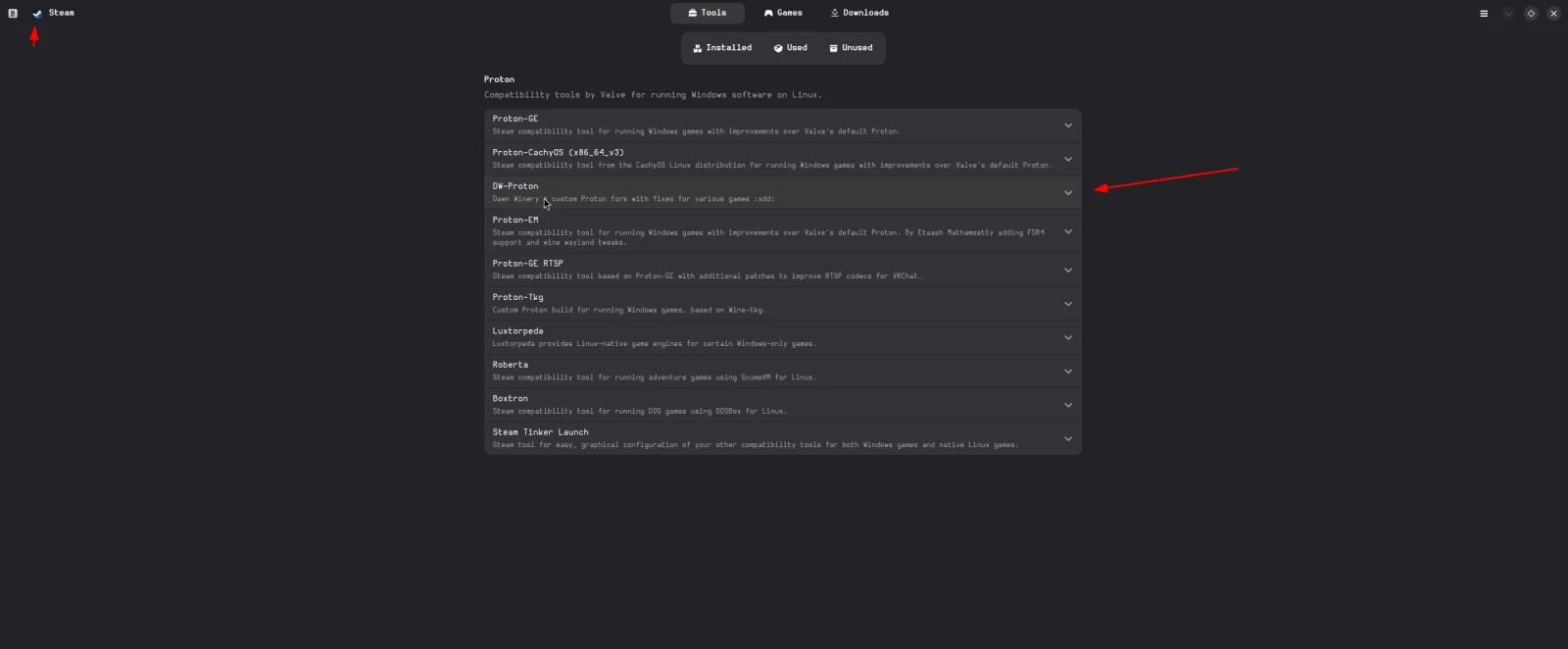
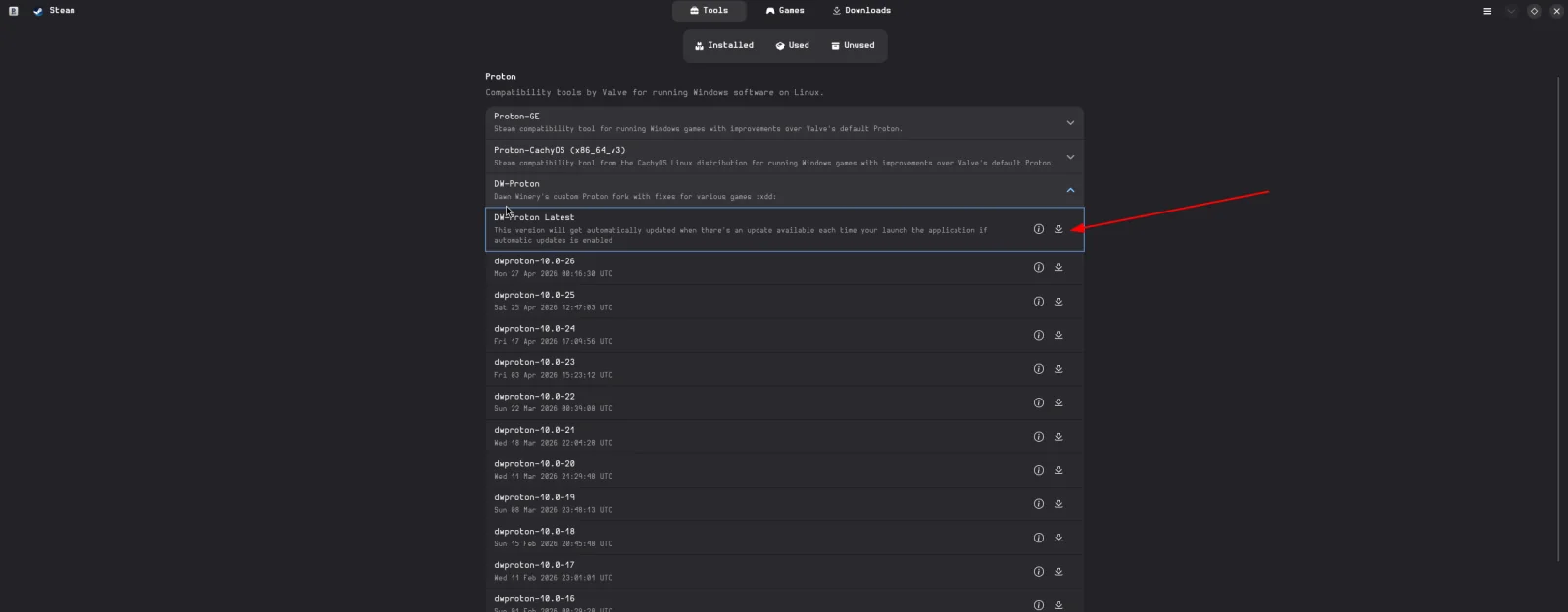
Steam or Heroic not in the dropdown? Open Steam or Heroic once so they can initialise, then open ProtonPlus again and they should appear.
If you already have DW-Proton installed, skip to Part 2. Make sure it is up to date.
Part 2: Add and install NIKKE in Heroic Games Launcher
Section titled “Part 2: Add and install NIKKE in Heroic Games Launcher”Step 1: Add a new game
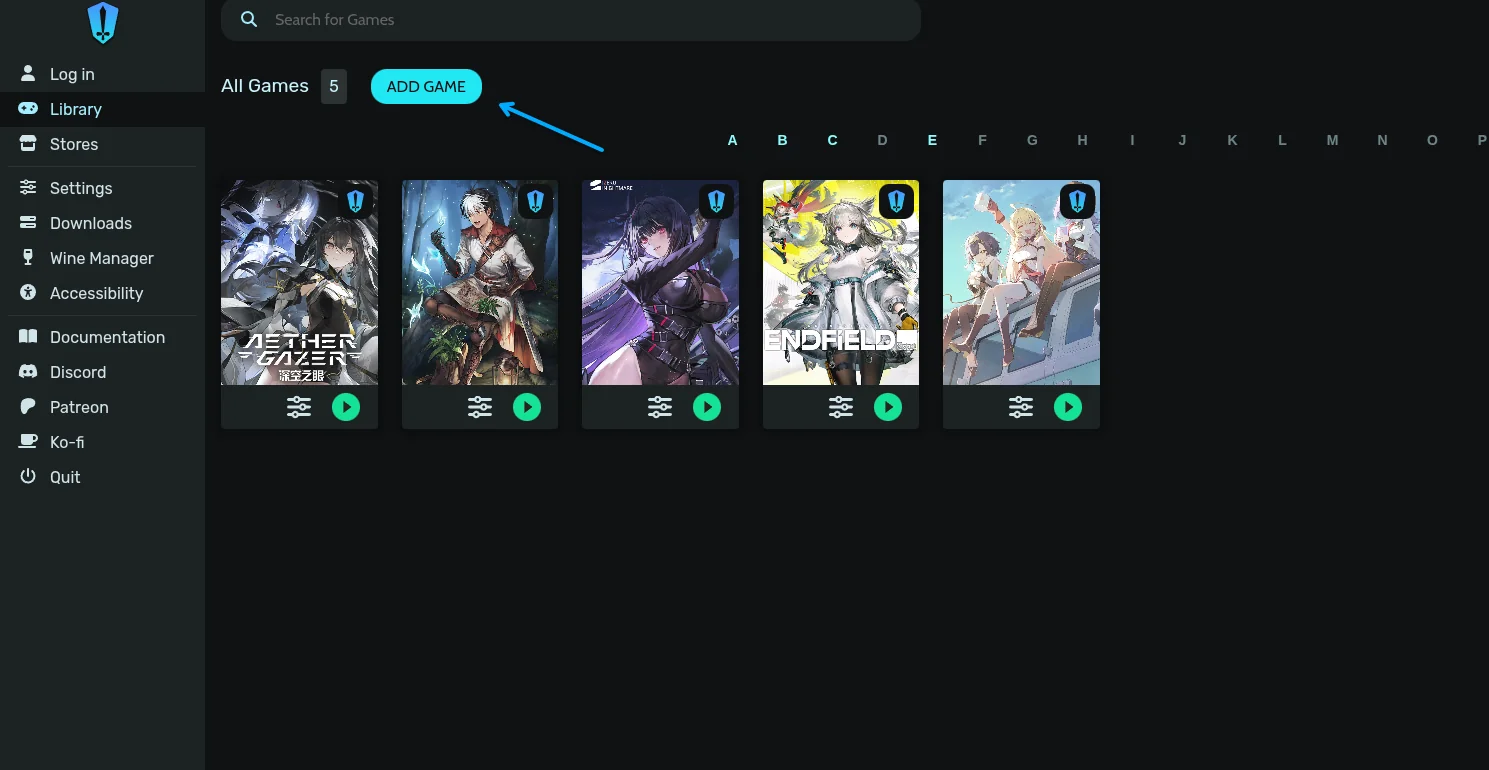
Section titled “Step 1: Add a new game”Open Heroic Games Launcher, go to your Library and click ADD GAME at the top.
Step 2: Name the game and open Wine settings
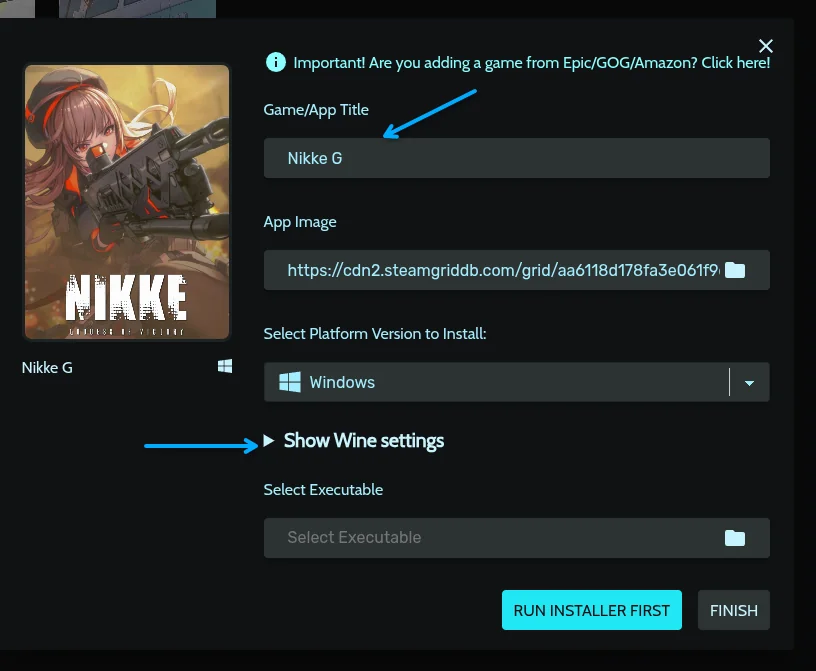
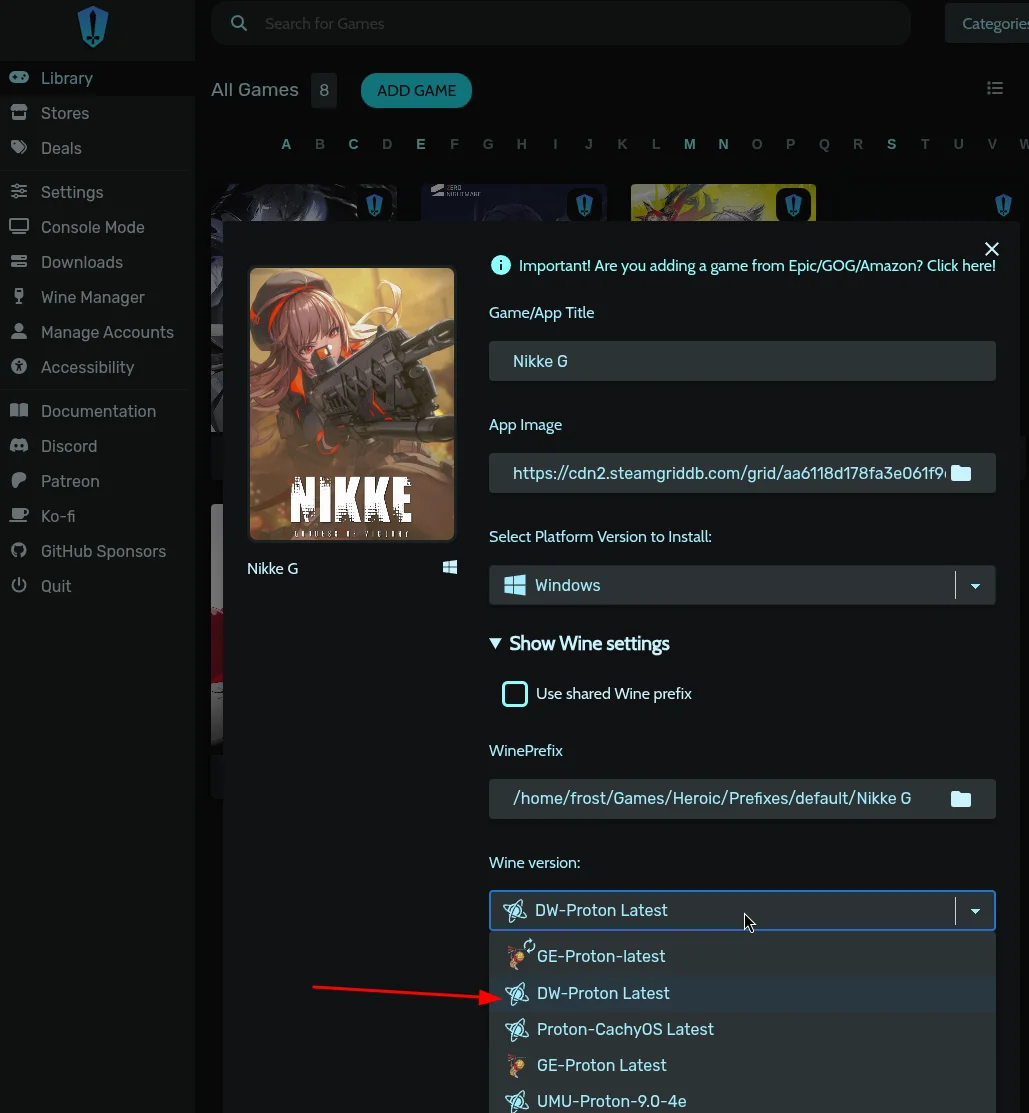
Section titled “Step 2: Name the game and open Wine settings”Give the game a title such as “Nikke”, then scroll down and click the Show Wine settings drop-down arrow to expand the advanced options.
Step 3: Select DW-Proton as the Wine version
Section titled “Step 3: Select DW-Proton as the Wine version”Under the expanded Wine settings, open the Wine version dropdown and select your custom runner, DW-Proton-Latest. This step is crucial for getting the game to launch properly.
Step 4: Run the installer
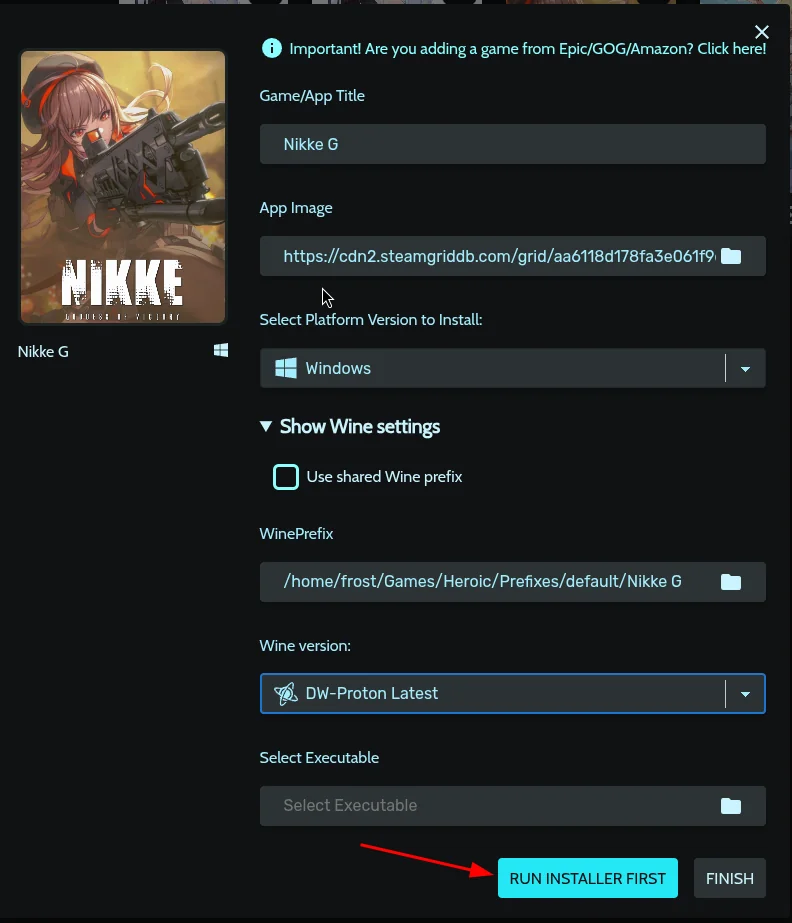
Section titled “Step 4: Run the installer”Instead of clicking Finish, scroll down and click the blue RUN INSTALLER FIRST button. Heroic will set up the environment and prepare to run the Windows setup file.
Step 5: Select the installer
Section titled “Step 5: Select the installer”A file browser opens. Go to your Downloads folder (or wherever you saved it) and select the official NIKKE installer .exe (for example nikkeminiloader_...exe), then click Select.

Step 6: Install the game
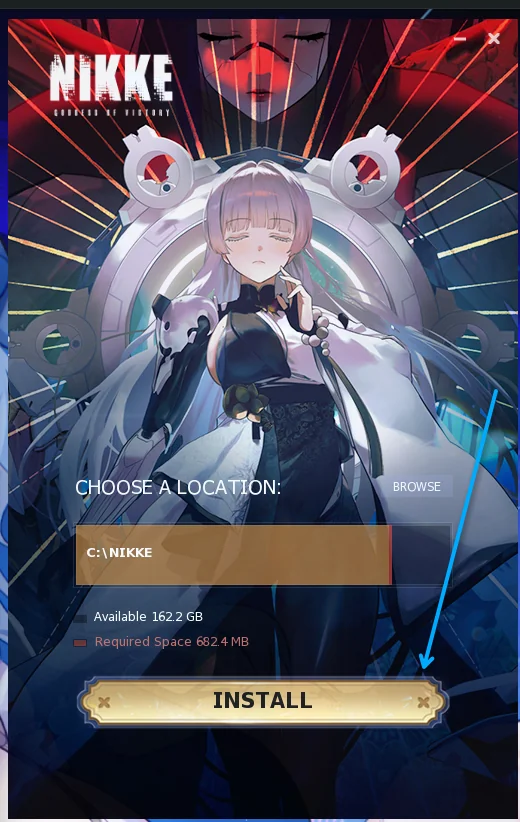
Section titled “Step 6: Install the game”When the setup window appears, keep the default install location C:\NIKKE (Heroic maps this into your Wine prefix) and click INSTALL.
Step 7: Wait for the download to finish
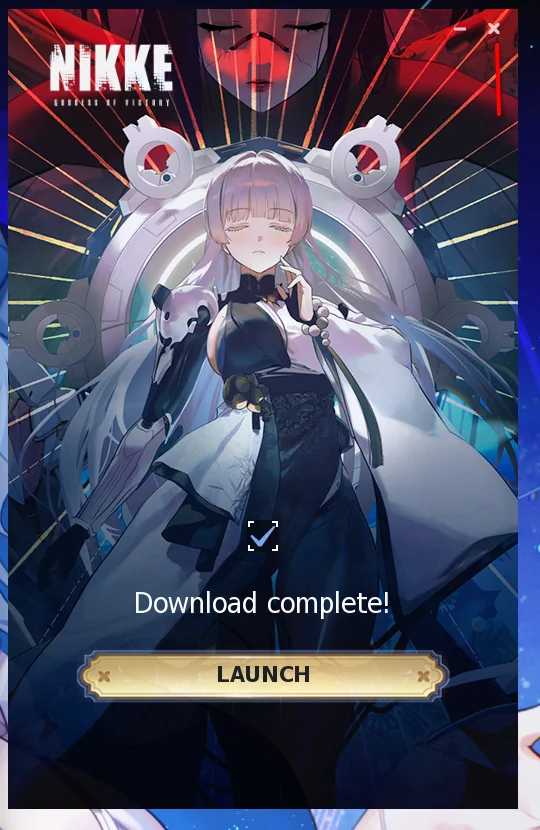
Section titled “Step 7: Wait for the download to finish”The launcher downloads the game files. When you see “Download complete!”, close this window so you can finish the Heroic configuration.
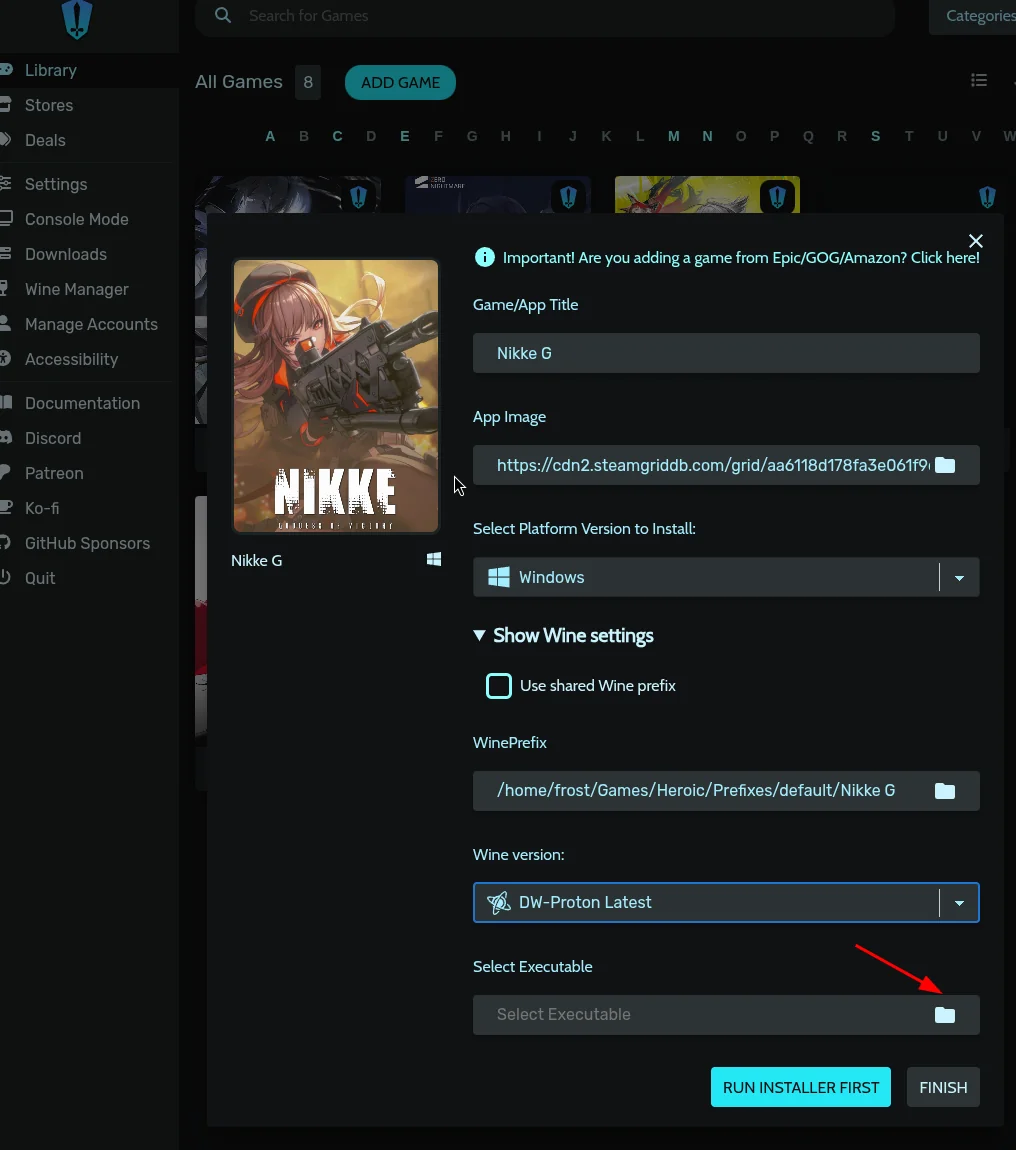
Step 8: Select the installed executable
Section titled “Step 8: Select the installed executable”Back in the Add Game menu, find the Select Executable field at the bottom and click the folder icon.
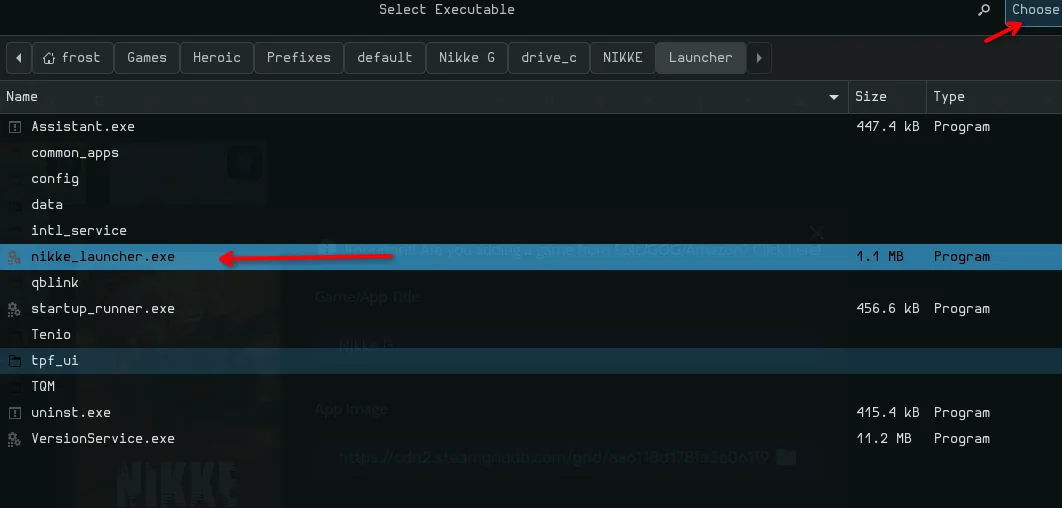
Step 9: Point Heroic to nikke_launcher.exe
Section titled “Step 9: Point Heroic to nikke_launcher.exe”Browse inside your Wine prefix to drive_c > NIKKE > Launcher, highlight nikke_launcher.exe and click Choose.
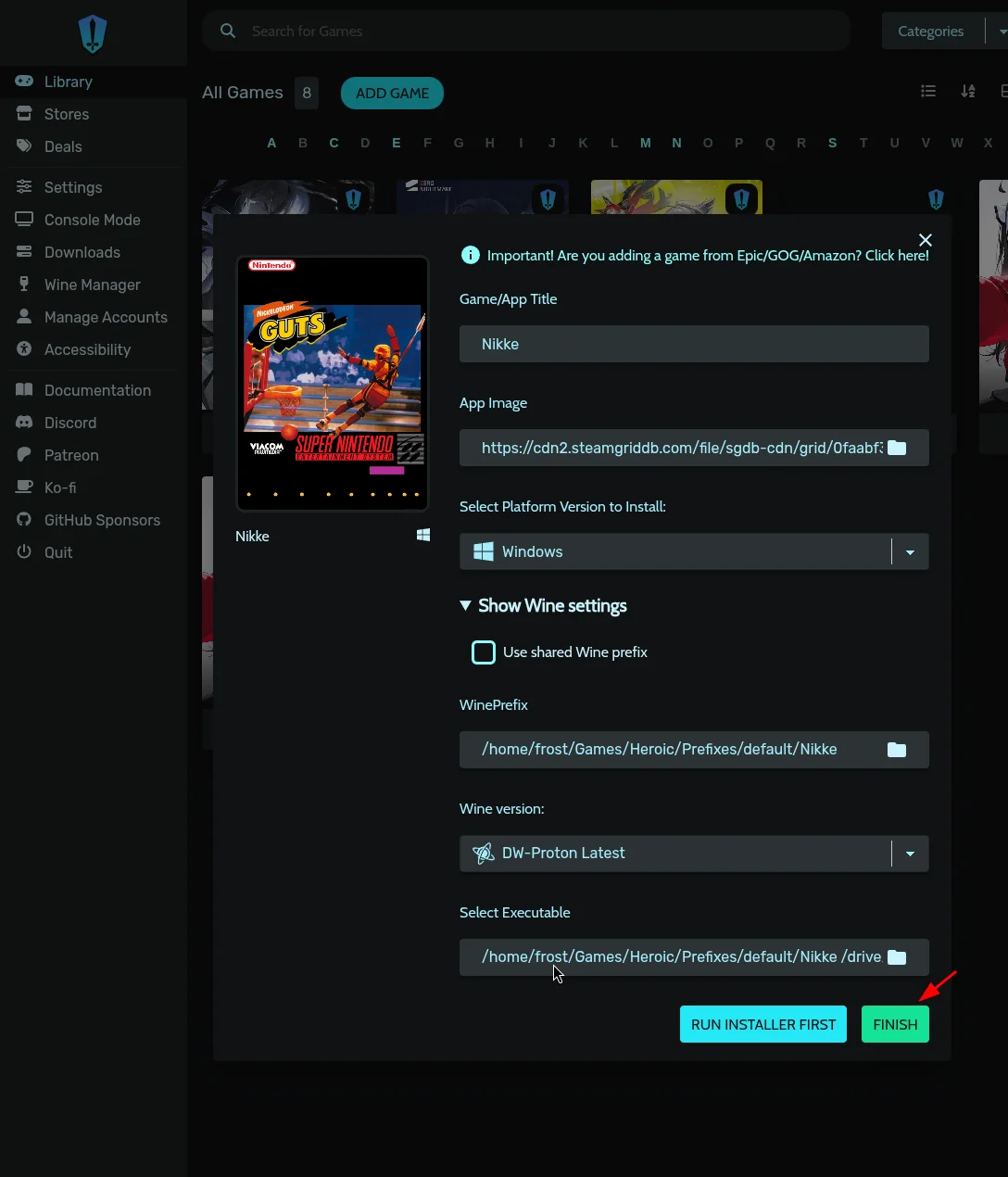
Step 10: Finish
Section titled “Step 10: Finish”Click the green FINISH button in the bottom right to add NIKKE to your library, then continue with the extra settings below.
Part 3: Settings that make NIKKE launch reliably
Section titled “Part 3: Settings that make NIKKE launch reliably”The game may take a few stops and starts to get working. These settings reduce that.
Disable Esync and Fsync
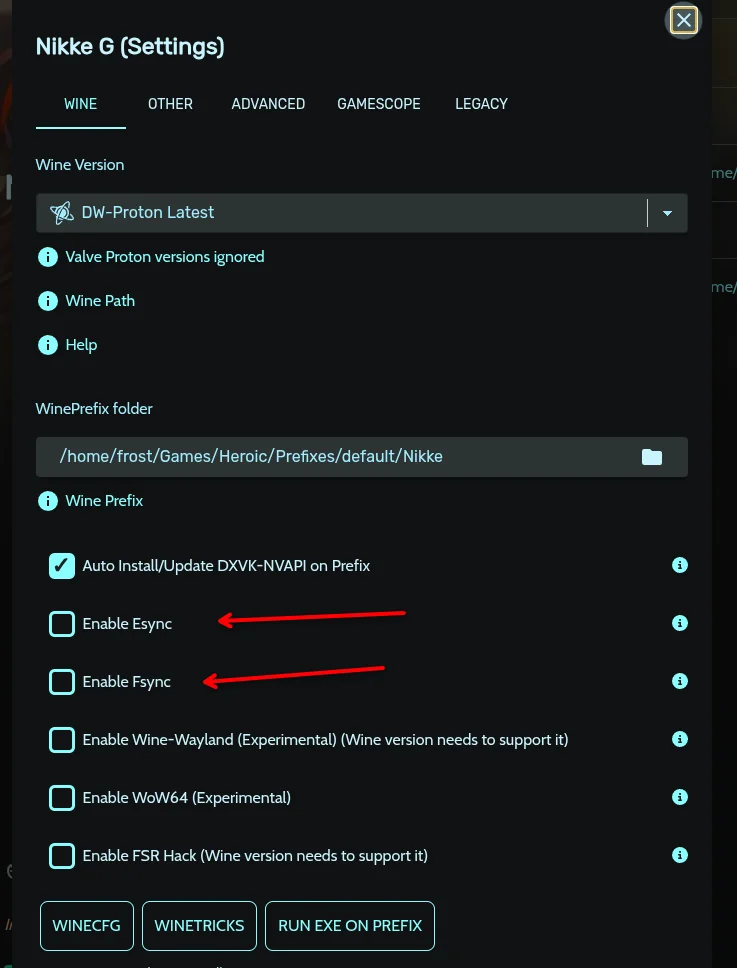
Section titled “Disable Esync and Fsync”- Open the game’s settings and go to the WINE tab.
- Scroll down and make sure both Enable Esync and Enable Fsync are unchecked.
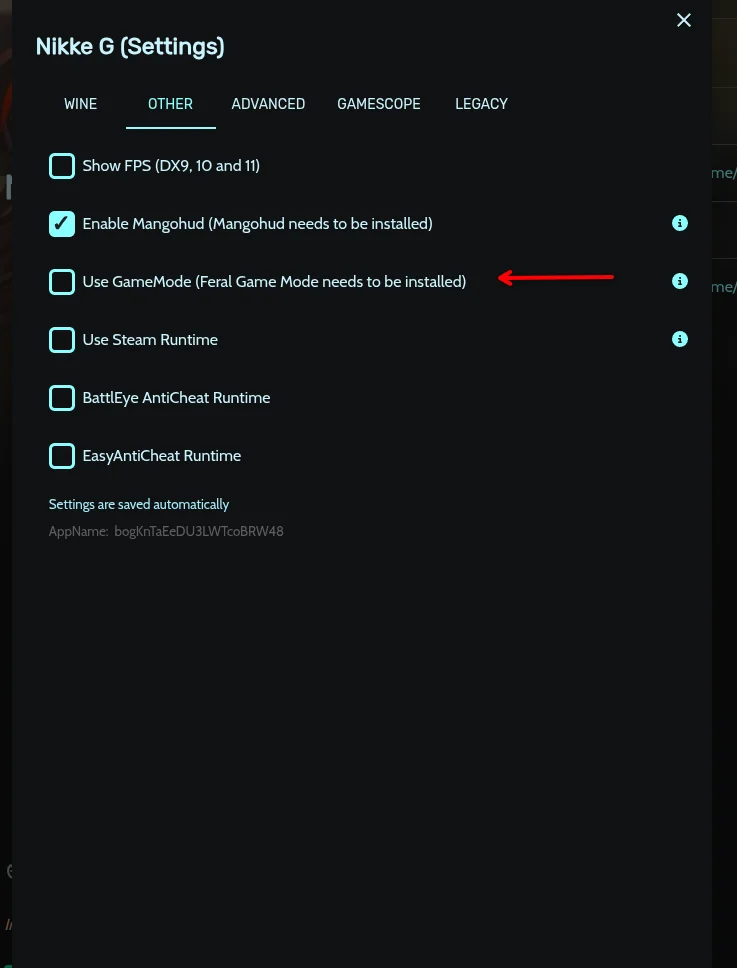
Disable GameMode
Section titled “Disable GameMode”- Open the OTHER tab.
- Make sure Use GameMode is unchecked.
Set the environment variable
Section titled “Set the environment variable”In the ADVANCED tab, scroll to Environment Variables, add the variable below and click the green + button.
PROTON_USE_NTSYNC=0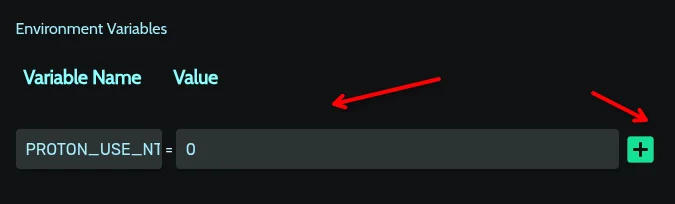
You can now launch NIKKE from Heroic.
Troubleshooting
Section titled “Troubleshooting”Older hardware (for example Intel HD 4000 graphics)
Section titled “Older hardware (for example Intel HD 4000 graphics)”Add this environment variable the same way as above:
PROTON_DXVK_SAREK=1If that does not work, try this instead:
PROTON_USE_WINED3D=1Nvidia GPU and video not showing
Section titled “Nvidia GPU and video not showing”Add this environment variable:
GST_PLUGIN_FEATURE_RANK=nvh264dec:0,nvdec:0,nvh265dec:0Frequently asked questions
Section titled “Frequently asked questions”Can you play NIKKE: Goddess of Victory on Linux? Yes. This guide uses Heroic Games Launcher with DW-Proton to run the official PC installer on Linux.
Which Proton version should I use for NIKKE? Use the latest DW-Proton, installed through ProtonPlus. Selecting it as the Wine version in Heroic is required for the game to launch properly.
Do I need Steam? No. This method uses Heroic Games Launcher. Steam only appears as an optional place to install the DW-Proton runner.
Why does NIKKE not launch the first time?
It can take a few attempts. Disable Esync, Fsync and GameMode and set PROTON_USE_NTSYNC=0 as shown in Part 3.
Does this work on old graphics cards?
Often yes. Try PROTON_DXVK_SAREK=1, and if that fails PROTON_USE_WINED3D=1.
Game key art and screenshots are © their respective owners and are shown here for identification only.