How to Play Umamusume: Pretty Derby on Linux (Steam + Proton Guide)

Umamusume: Pretty Derby runs on Linux through Steam and Proton. For most people the default Steam settings work. If you get a white screen, the fix is a one-time command that unlocks Steam’s H.264 media decoder. If that still fails, switch the game to Proton-GE with ProtonPlus.
Quick fix summary
Section titled “Quick fix summary”| Problem | Fix |
|---|---|
| Game works with default settings | Nothing to do |
| White screen | Run the H.264 unlock command |
| Still does not launch | Use Proton-GE |
Step 1: Install Steam and the game
Section titled “Step 1: Install Steam and the game”Install Steam for your distribution (search for how to install Steam on your distro, or it may already be preinstalled), install Umamusume and try playing with the default Steam settings. This should work for most people.
If the game does not launch, move on to Step 2, which is specifically the white screen fix. If something else is wrong, ask in the Discord.

Step 2: Fix the white screen with the H.264 unlock
Section titled “Step 2: Fix the white screen with the H.264 unlock”Copy these commands into your terminal (Konsole or similar).
First close Steam by right-clicking the taskbar icon and choosing exit Steam, or run:
killall steamOnce Steam is closed, run the command below. It launches Steam with the correct settings. You only need to do this once on a new Steam install, and it also fixes other games that were not working before.
steam steam://unlockh264/That’s it. Umamusume should no longer show a white screen.

If you use the Flatpak version of Steam
Section titled “If you use the Flatpak version of Steam”Most people do not use the Steam Flatpak. If you get “steam: command not found”, you probably have the Flatpak.
Close Steam from the taskbar icon, or run:
flatpak kill com.valvesoftware.SteamOnce Steam is closed, run:
xdg-open steam://unlockh264/Tip: unless you have a specific reason to use the Flatpak, the native package for your distribution is recommended.
Once Steam restarts (you will see the “Unlock H.264” dialog), launch the game again. The white screen should be gone.
Step 3: Use Proton-GE if nothing else works
Section titled “Step 3: Use Proton-GE if nothing else works”If none of that works, use Proton-GE instead. You can follow the video guide:
Install ProtonPlus
Section titled “Install ProtonPlus”Install ProtonPlus from Flathub or as a native package: https://flathub.org/en/apps/com.vysp3r.ProtonPlus. You can also search for ProtonPlus in your software manager.
Download Proton-GE
Section titled “Download Proton-GE”Open ProtonPlus, select Steam in the top left and download the latest Proton-GE.
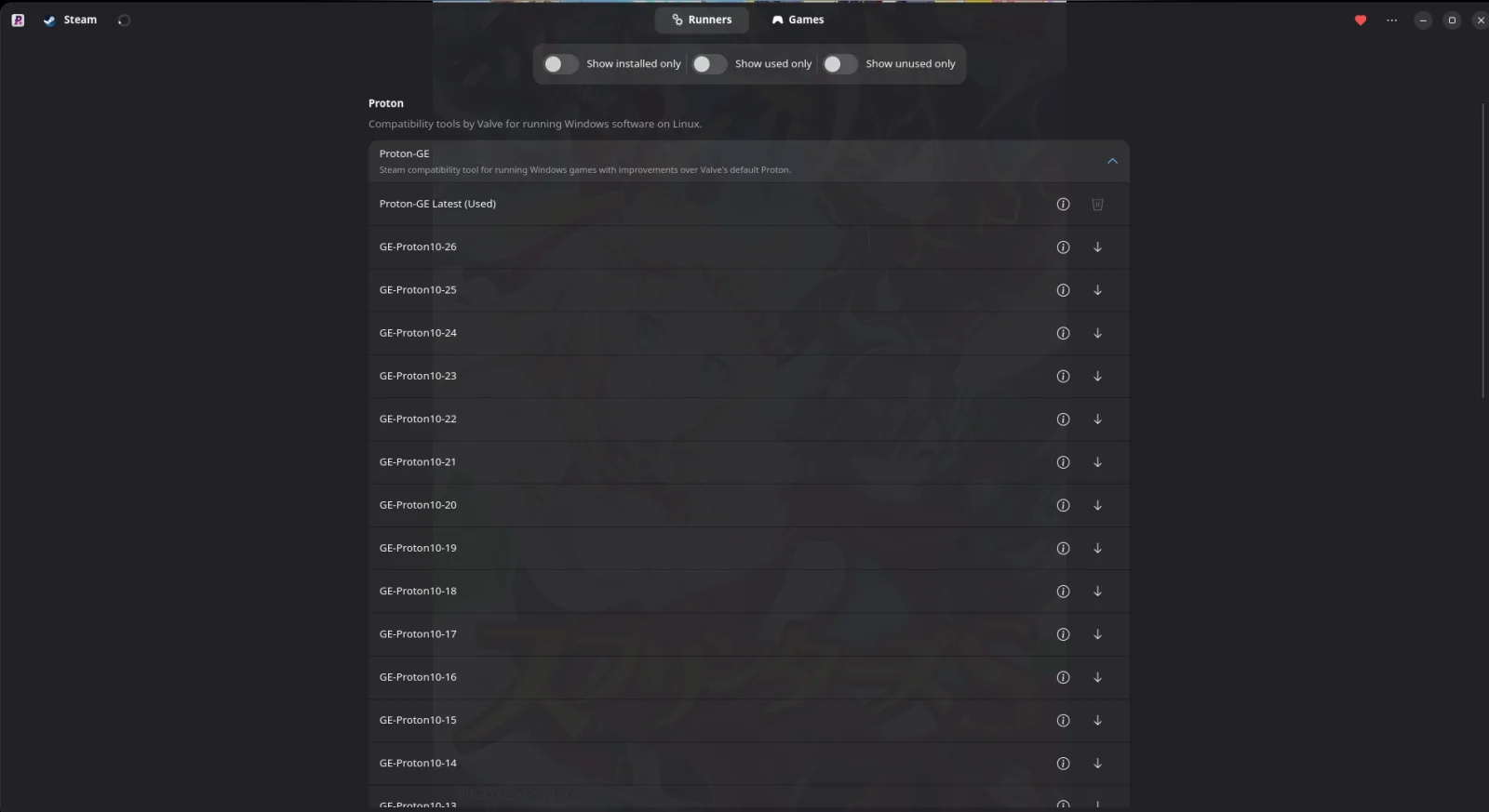
Set Umamusume to use Proton-GE
Section titled “Set Umamusume to use Proton-GE”In ProtonPlus: go to the Games section and set Umamusume to use Proton-GE Latest.
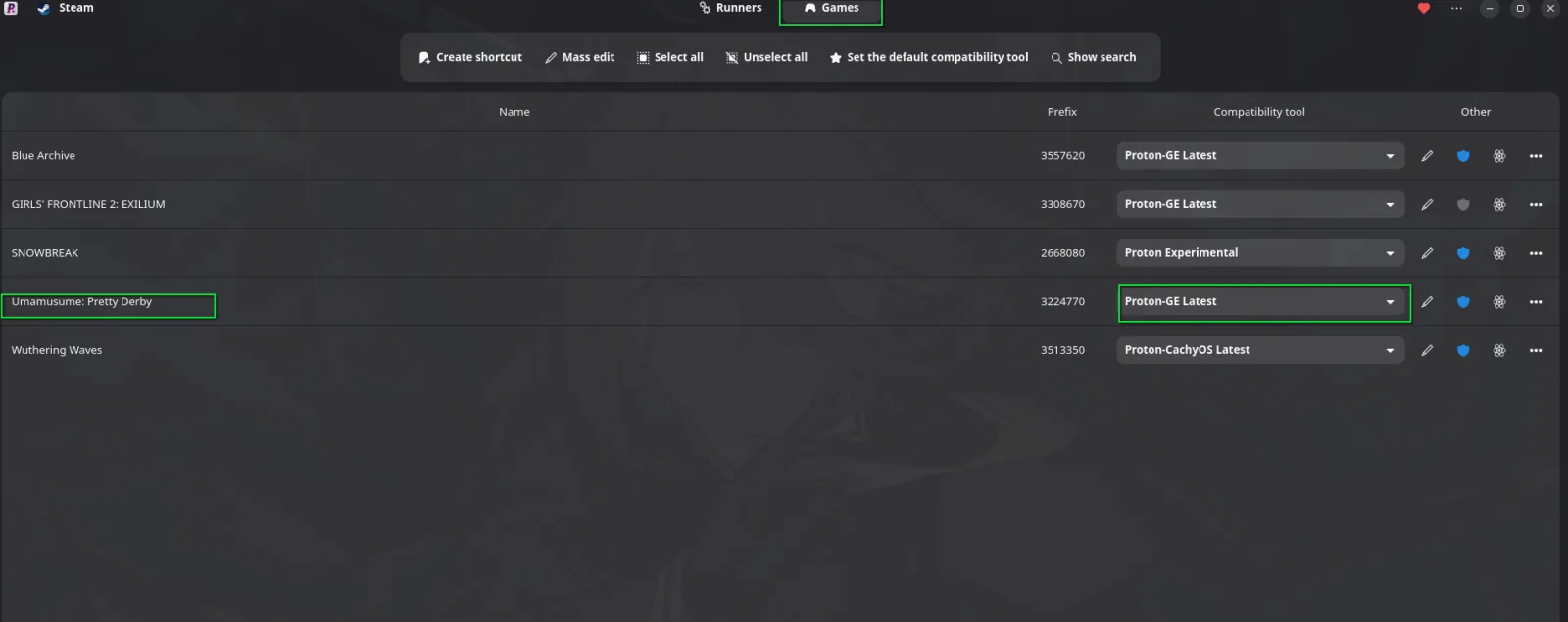
Or in Steam: you must have installed Proton-GE for Steam first. Click the cog icon for Umamusume, go into Compatibility and select Proton-GE. Proton-CachyOS can be used as well.
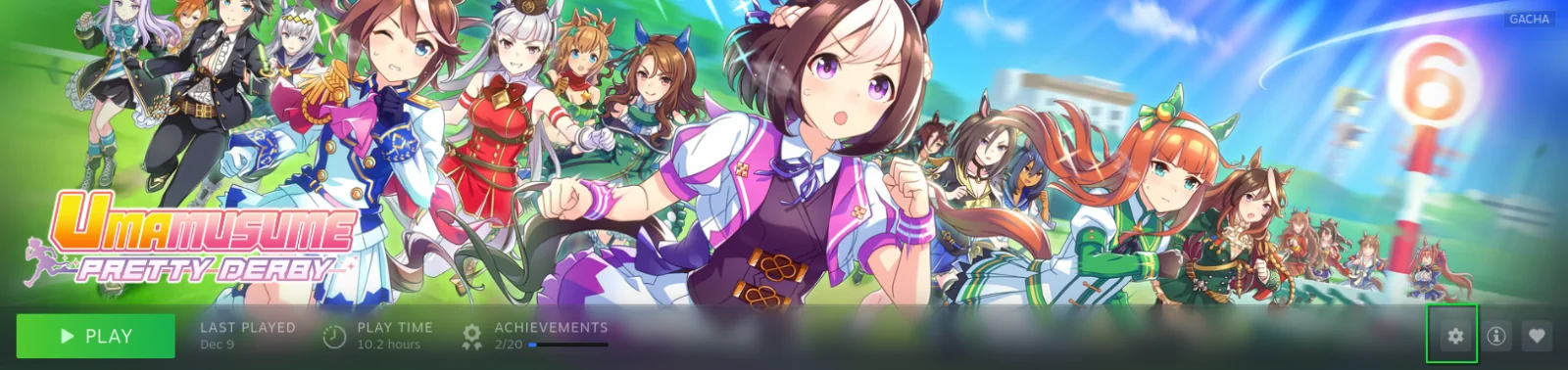
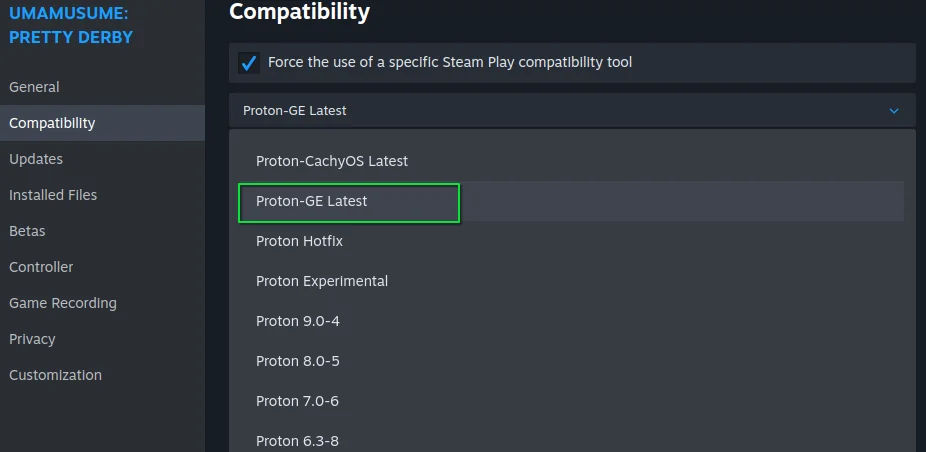
If the game still does not launch with Proton-GE, ask in the Discord.
Frequently asked questions
Section titled “Frequently asked questions”Why does Umamusume show a white screen on Linux?
It is usually caused by Steam’s missing H.264 media decoder. Running steam steam://unlockh264/ once fixes it.
Does this fix other games too? Yes. The H.264 unlock only needs to be done once on a new Steam install and it fixes other games that were not working before.
What if I use Steam as a Flatpak?
Close it with flatpak kill com.valvesoftware.Steam and run xdg-open steam://unlockh264/.
Which Proton should I use for Umamusume? Try the default Steam settings first. If it fails, use the latest Proton-GE (or Proton-CachyOS), installed with ProtonPlus.
Game key art and screenshots are © their respective owners and are shown here for identification only.