Chaos Zero Nightmare on Linux: Faugus Launcher Guide (Stove + WebView2)
Faugus Launcher is the recommended method now — Heroic has had issues after the Season 2 update.
Add Chaos Zero Nightmare to Faugus
Section titled “Add Chaos Zero Nightmare to Faugus”-
Open Faugus Launcher.
-
Go to Settings > Proton Manager and download the latest available Proton.
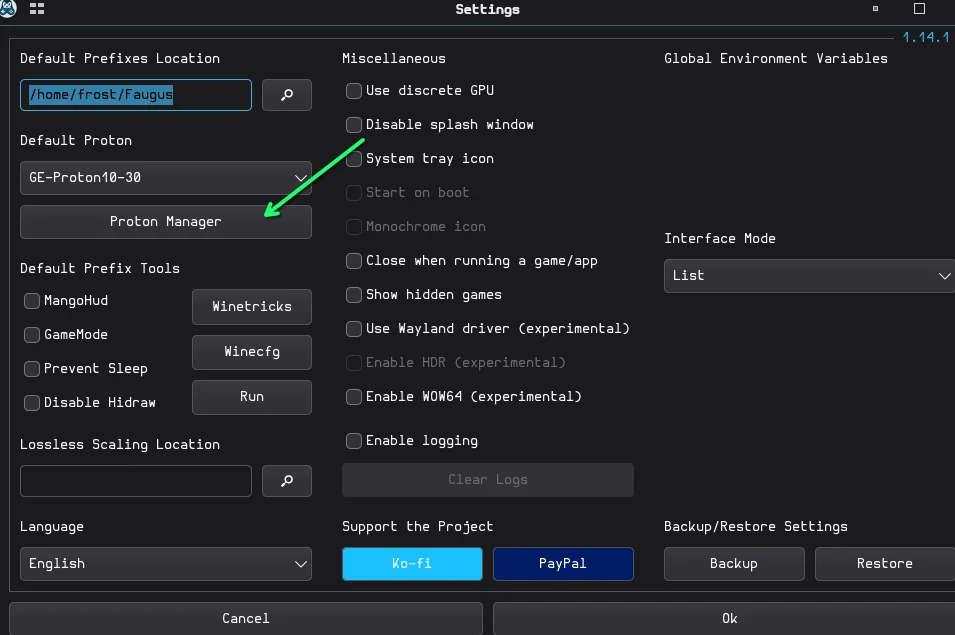
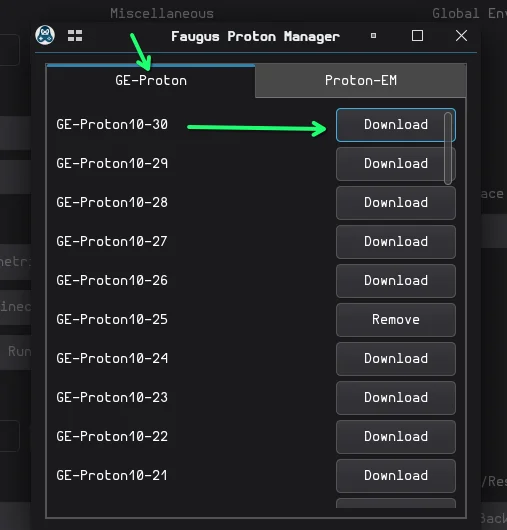
-
Click the + button, enter the name of the game, click the search icon and locate the
STOVE.exeyou downloaded earlier.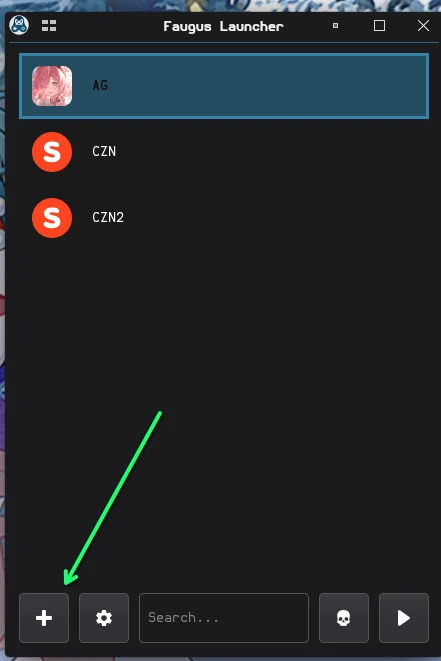
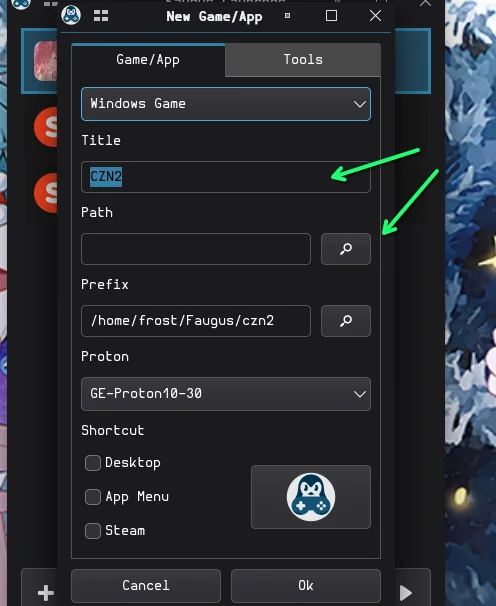
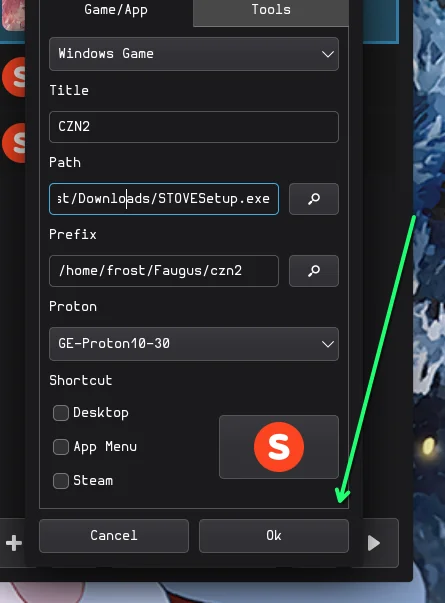
-
Set Proton to the version you downloaded and press OK.
-
Click Play. Stove installs quickly, so accept the terms and defaults.
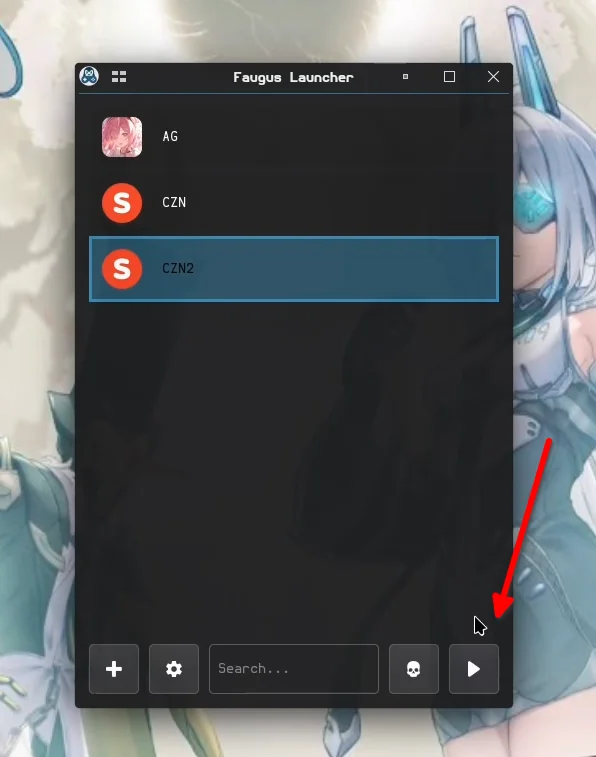
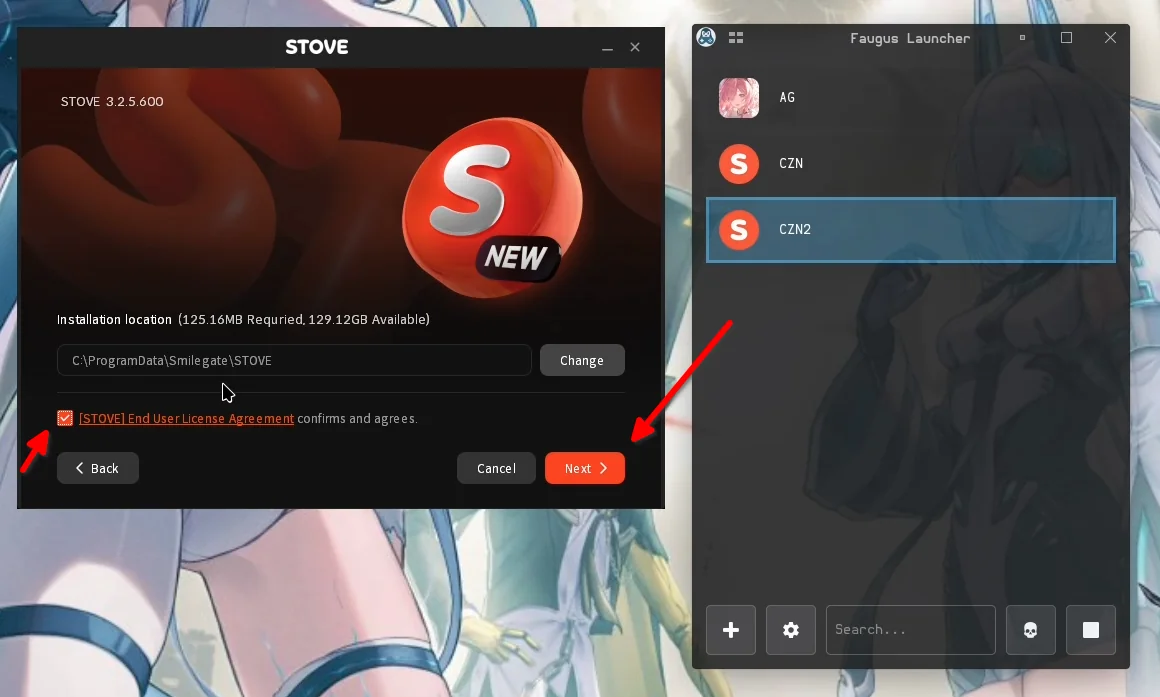
-
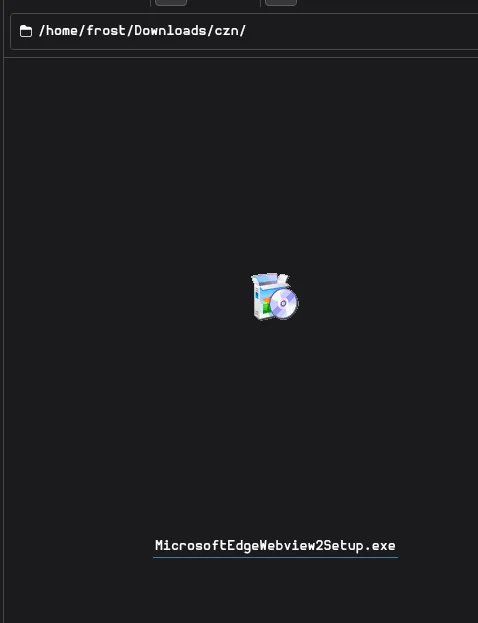
Once Stove has finished installing, right-click the Chaos Zero Nightmare entry in Faugus Launcher, choose Edit, click Run and locate your Microsoft Edge WebView evergreen bootstrapper executable.
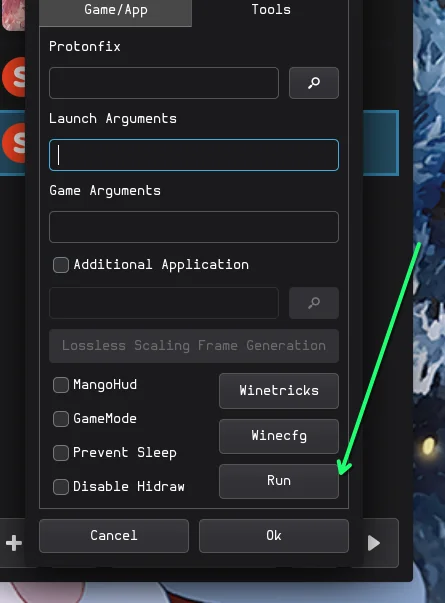
Launch Stove from Faugus
Section titled “Launch Stove from Faugus”Copy the prefix path you used when installing Stove and paste it into the Prefix box. Then click Search and locate your STOVE.exe. It looks like this:
/home/user/Faugus/prefix_name/drive_c/ProgramData/Smilegate/STOVE/STOVE.exeFor example, if the user is frost and the prefix is called czn2:
/home/user/Faugus/czn2/drive_c/ProgramData/Smilegate/STOVE/STOVE.exe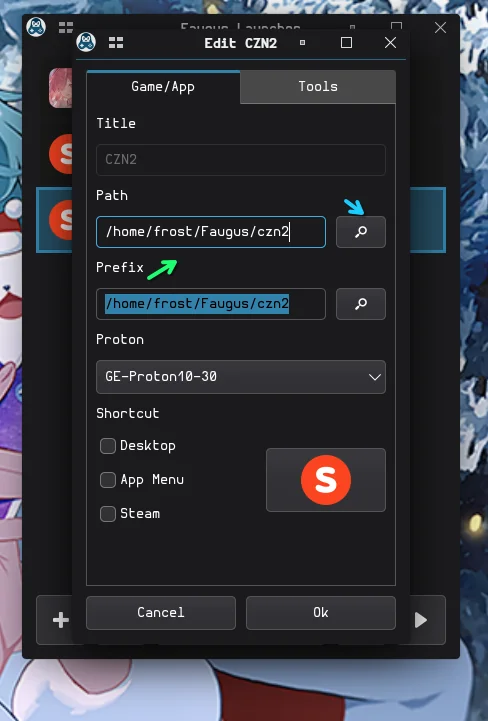
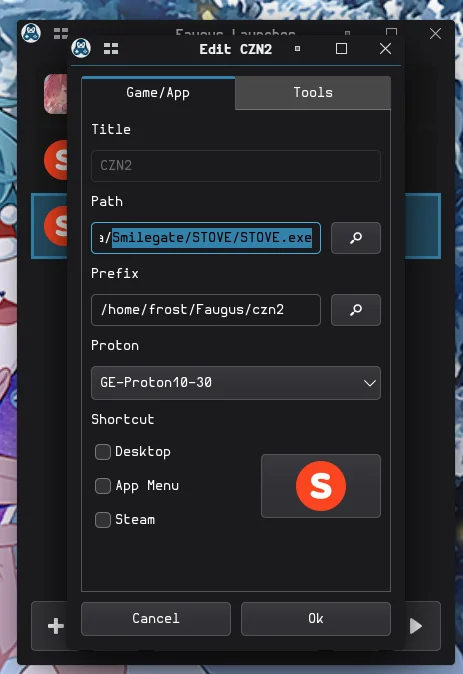
Once the executable is found, click Run to start Stove.
Troubleshooting
Section titled “Troubleshooting”- Install freezes: see Fix: install freeze.
- Stove will not launch afterwards: see crashpad_handler.exe.
Game key art and screenshots are © their respective owners and are shown here for identification only.